FFmpeg is a powerful tool for manipulating audiovisual files. Unfortunately, it also has a steep learning curve, especially for users unfamiliar with a command line interface. This app helps users through the command generation process so that more people can reap the benefits of FFmpeg.
Each button displays helpful information about how to perform a wide variety of tasks using FFmpeg. To use this site, click on the task you would like to perform. You will jump to a single command or a list of related commands. Click on a command description, and the site will display a sample command as well as an explanation of how that command works with a breakdown of each of its flags (or options).
This page does not have search functionality, but you can open all recipes (second option in the sidebar) and use your browser's search tool (often ctrl+f or cmd+f) to perform a keyword search through all recipes.

Friction is a powerful and versatile motion graphics application that allows you to create stunning vector and raster animations for web and video platforms with ease.
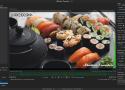
Shutter Encoder is one of the best video converter software, it handles images and audio too!
It has been designed by video editors in order to be as accessible and efficient as possible.
Shutter Encoder makes use of FFmpeg to handle its encoding, allowing support for almost
every codec you’ve ever heard of, and many more you haven’t.
Don’t just take our word for it though, Avid themselves recommend Shutter Encoder
as part of your Media Composer and ProTools ingesting workflow!
Highest quality
Gifski makes smooth GIF animations using advanced techniques that work around the GIF format's limitations.
Share your clips in their full quality, not a bland dithered mess.
Good compression
Gifski lets you resize animations and tweak compression levels, so you can make your GIFs fit within upload file size limits.
It's more advanced than a simple color reduction.
State of the art
Gifski uses pngquant for the best palettes with temporal dithering. It can achieve thousands of colors per frame.
It supports true lossy LZW compression and temporal smoothing and denoising.
Homebrew v2.0 dropped all of the extra options that are not explicitly enabled in each formulae. So the --with options no longer work if you use the core Homebrew formulae.
Instead you can use a third-party repository (or "tap") such as homebrew-ffmpeg. This tap was created in response to the removal of the options from the core formulae.
Enable it then install ffmpeg:
brew tap homebrew-ffmpeg/ffmpeg
brew install homebrew-ffmpeg/ffmpeg/ffmpeg --with-fdk-aac
You can see a list of additional options with:
brew options homebrew-ffmpeg/ffmpeg/ffmpeg
It's recommended to install a recent build from the git master branch. You can do so with the --HEAD option:
brew install homebrew-ffmpeg/ffmpeg/ffmpeg --with-fdk-aac --HEAD
What makes these tools unique are the ratecontrol systems which achieve those goals.
This package is based on my original collection of Video Transcoding Scripts written in Bash. While still available online, those scripts are no longer in active development. Users are encouraged to install this Ruby Gem instead.
Most of the tools in this package are essentially intelligent wrappers around Open Source software like HandBrake, FFmpeg, MKVToolNix, and MP4v2. And they're all designed to be executed from the command line shell:
transcode-video Transcode video file or disc image directory into format and size similar to popular online downloads.
detect-crop Detect crop values for video file or disc image directory.
convert-video Convert video file from Matroska to MP4 format or from MP4 to Matroksa format without transcoding video.
query-handbrake-log Report information from HandBrake-generated .log files.