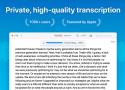
Quickly and easily transcribe audio files into text with OpenAI's state-of-the-art transcription technology Whisper. Whether you're recording a meeting, lecture, or other important audio, MacWhisper quickly and accurately transcribes your audio files into text.
Features
Easily record and transcribe audio files

Just drag and drop audio files to get a transcription
.srt & .vtt subtitles export

Get accurate text transcriptions in seconds (~15x realtime)

Search the entire transcript and highlight words
Supports multiple languages (fastest model is English only)

Copy the entire transcript or individual sections
Supports Tiny (English only), Base and Large models

Reader Mode
Edit and delete segments from the transcript
Select transcription language (or use auto detect)
Supported formats: mp3, wav, m4a and mp4 videos.Online tools for syncing, fixing and converting subtitle files.
Caption takes the effort out of finding and setting up the right subtitles. A simple design, drag & drop search, and automatic downloading & renaming let you just start watching. Caption is multi-platform, open-source, and built entirely on web technology.
So lets start by installing the needed tools for extracting the subtitles from the .mkv files:
brew install mkvtoolnix
Next we want to see all tracks of the .mkv file:
mkvmerge -i my-movie.mkv
This will give you a similar output:
File 'my-movie.mkv': container: Matroska
Track ID 0: video (MPEG-4p10/AVC/h.264)
Track ID 1: audio (DTS)
Track ID 2: audio (DTS)
Track ID 3: subtitles (VobSub)
Track ID 4: subtitles (VobSub)
Chapters: 16 entries
So we see that this .mkv has one video, two audio (english and german) and two VobSub subtitles tracks (english and german). We are interested in the two last tracks and with these commands you can extract them:
mkvextract tracks my-movie.mkv 3:sub3.srt 4:sub4.srt
Currently I only extracted VobSub subtitles and this guide deals with the .sub/.idx files and convert them to the .srt format. It could also be that there are already .srt files in the .mkv files, then you do not need to convert anything and just check the language of the subtitles by opening them in any text editor and check the language.
This will result in four files named sub3.idx/sub3.sub and sub4.idx/sub4.sub in the same directory. Currently we do not see what language the subtitles are so we need to convert them to the .srt format. Before we are able to do this we need to install the needed tools:
brew install --all-languages tesseract
brew install --HEAD https://github.com/ruediger/VobSub2SRT/raw/master/packaging/vobsub2srt.rb
After that you can execute the following commands to convert the subtitles from the .idx/.sub format to the .srt format:
vobsub2srt my-movie
Please note that you just add the name of the .idx/.sub subtitle files. So you do not need to add any file extension just the name. This process can take some time depending on the size of the subtitles.