FFmpeg is a powerful tool for manipulating audiovisual files. Unfortunately, it also has a steep learning curve, especially for users unfamiliar with a command line interface. This app helps users through the command generation process so that more people can reap the benefits of FFmpeg.
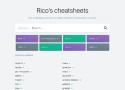
Each button displays helpful information about how to perform a wide variety of tasks using FFmpeg. To use this site, click on the task you would like to perform. You will jump to a single command or a list of related commands. Click on a command description, and the site will display a sample command as well as an explanation of how that command works with a breakdown of each of its flags (or options).
This page does not have search functionality, but you can open all recipes (second option in the sidebar) and use your browser's search tool (often ctrl+f or cmd+f) to perform a keyword search through all recipes.

utorial: Unprivileged LXCs - Mount CIFS shares
1) Stop the container (you can do it from the proxmox web interface but considering that you will need ssh access to the server the complete the other steps, I have stopped the container using a simple command issued on the linux shell prompt):
pct stop container-id
2) Create a full container backup (to preserve the actual information within the container):
vzdump container-id -storage local -compress lzo
3) Destroy the container
pct destroy container-id
4) Restore the container from the previous created backup
pct restore container-id /var/lib/vz/dump/vzdump-lxc-container-id-2017_02_13-16_50_29.tar.lzo --rootfs local-lvm:25
Some infos about step 4:
The default backup location is /var/lib/vz/dump
When you create a backup using vzdump the file structure for the backup is: vzdump-lxc-container-id–year_month_day–hour_minutes_seconds.tar.lzo
local-lvm represents the name (description) of the local storage volume as shown in the proxmox web interface (Storage View); depending of your configuration, the name is probably different
Git is hard: screwing up is easy, and figuring out how to fix your mistakes is fucking impossible. Git documentation has this chicken and egg problem where you can't search for how to get yourself out of a mess, unless you already know the name of the thing you need to know about in order to fix your problem.
Learn to make the most of the tools that hackers have been using for decades.
As hackers, we spend a lot of time on our computers, so it makes sense to make that experience as fluid and frictionless as possible. In this class, we’ll help you learn how to make the most of tools that productive programmers use.
We’ll show you how to navigate the command line, use a powerful text editor, use version control efficiently, automate mundane tasks, manage packages and software, configure your desktop environment, and more.
Every byte of a TLS connection explained and reproduced.
In this demonstration a client connects to a server, negotiates a TLS 1.2 session, sends "ping", receives "pong", and then terminates the session. Click below to begin exploring.
If you’re a self-taught engineer or bootcamp grad, you owe it to yourself to learn computer science. Thankfully, you can give yourself a world-class CS education without investing years and a small fortune in a degree program 💸.
There are plenty of resources out there, but some are better than others. You don’t need yet another “200+ Free Online Courses” listicle. You need answers to these questions:
Which subjects should you learn, and why?
What is the best book or video lecture series for each subject?
This guide is our attempt to definitively answer these questions.
TL;DR:
Study all nine subjects below, in roughly the presented order, using either the suggested textbook or video lecture series, but ideally both. Aim for 100-200 hours of study of each topic, then revisit favorites throughout your career 🚀.

There’s a lot of outdated information on the Web that leads new PHP users astray, propagating bad practices and insecure code. PHP: The Right Way is an easy-to-read, quick reference for PHP popular coding standards, links to authoritative tutorials around the Web and what the contributors consider to be best practices at the present time.
There is no canonical way to use PHP. This website aims to introduce new PHP developers to some topics which they may not discover until it is too late, and aims to give seasoned pros some fresh ideas on those topics they’ve been doing for years without ever reconsidering. This website will also not tell you which tools to use, but instead offer suggestions for multiple options, when possible explaining the differences in approach and use-case.
This is a living document and will continue to be updated with more helpful information and examples as they become available.
Possible Solution:
- Some has try the following:
npm install –no-optional
- Others have downgraded to npm 5.3.
npm install npm@5.3 -g
- Remove npm and npm cache
C:\Users\your.name\AppData\Roaming\npm
C:\Users\your.name\AppData\Roaming\npm-cache
But none of the above works for me.
-
The hard way is to rollback and start with a working state.
-
Finally, if none of above works, start a new app and slowly migrate over to see what changes cause the issue. This is a tedious and long process.
The command you want is named tee:
foo | tee output.file
For example, if you only care about stdout:
ls -a | tee output.file
If you want to include stderr, do:
program [arguments...] 2>&1 | tee outfile
2>&1 redirects channel 2 (stderr/standard error) into channel 1 (stdout/standard output), such that both is written as stdout. It is also directed to the given output file as of the tee command.
Furthermore, if you want to append to the log file, use tee -a as:
program [arguments...] 2>&1 | tee -a outfile
You dont need to install paragon HFS, just mount efi partition of disk, which is FAT32, unlike system itself...
procedure:
- run
diskpartas admin - In diskpart
list diskselect disk X(use correct number)
- In diskpart
list partitionselect partition X(correct number)
- In diskpart
assign letter=x
- EFI is now mounted, but Explorer wont allow you open it.
- Open notepad AS ADMIN, File ->open ->navigate to efi/clover/kexts (yes, this will trick windows rights, lol)
- Delete kext files (still in notepad open window)
1. List available local snapshots
First of all, you need to find out how many local snapshots exist in your local SSD. To do so, you need to execute the following command:
sudo tmutil listlocalsnapshots /Volumes/
2. Delete local snapshots
Next, you need to manually delete each local snapshot based in there <snapshot_date>.
sudo tmutil deletelocalsnapshots 2017-10-20-002004
Hacker101 is structured as a set of video lessons – some covering multiple topics, some covering a single one – and can be consumed in two different ways. You can either watch them in the order produced as in a normal class (§ Sessions), or you can watch individual videos (§ Vulnerabilities). If you’re new to security, we recommend the former; this provides a guided path through the content and covers more than just individual bugs.
Additionally, there are coursework levels where you can hunt for bugs and experiment with exploitation in practice. As you work through the content, try out the coursework to see what you can find!
IDEA is a series of nonverbal algorithm assembly instructions by Sándor P. Fekete, Sebastian Morr, and Sebastian Stiller. They were originally created for Sándor's algorithms and datastructures lecture at TU Braunschweig, but we hope they will be useful in all sorts of context. We publish them here so that they can be used by teachers, students, and curious people alike. Visit the about page to learn more.